Payroll Support Document
Open as: PDF or Word Document
I. Installation
Table of Contents
The "Fringe Benefit Prorate" tab
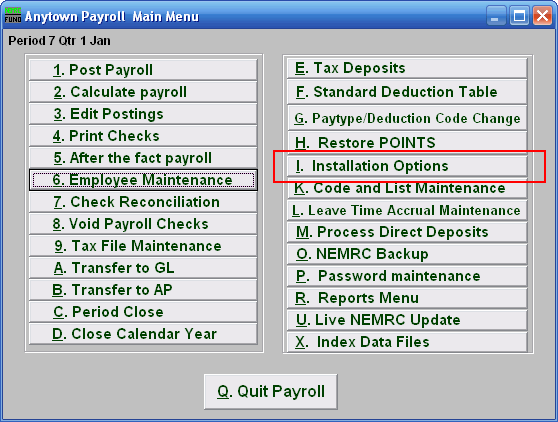
Click on "I. Installation" from the Main Menu and the following window will appear:
The "General" tab
Click on the "General" tab, and the following window will appear:
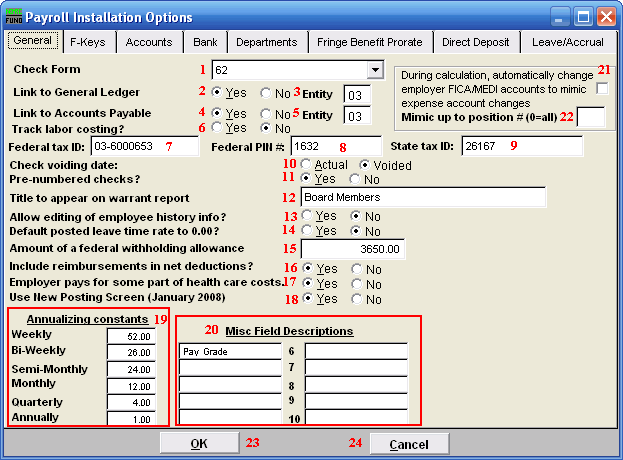
- Check Form: Use the drop down to select a check form number specific to your organization. NEMRC support can assist you in this choice.
- Link to General Ledger: Click the option appropriate for linking to the NEMRC General Ledger.
- Entity: This option may appear if you have been set up for cross linking NEMRC modules. The default link is to the same entity number.
- Link to Accounts Payable: Click the option appropriate for linking to the NEMRC Accounts Payable.
- Entity: This option may appear if you have been set up for cross linking NEMRC modules. The default link is to the same entity number.
- Track labor costing: Click the appropriate option if you wish to track labor costing. The system will allow recording user defined codes to report payroll cost grouped by cost code.
- Federal tax ID: Enter your Employer Identification Number (EIN) as provided by the SSA.
- Federal PIN #: You may enter your pin number used for reporting your federal deposits. This will print out on the Federal Deposit Report used for calling in the amounts.
- State tax ID: Enter your assigned State Tax Identification number.
- Check voiding date: Select the date to report to the General Ledger for a check when voided.
- Pre-numbered checks: Check "Yes" if you have pre-numbered check stock.
- Title to appear on warrant report: Enter the name of the responsible board to appear on the warrant printout.
- Allow editing of employee history info?: Check off yes if you need to overwrite values in the "History" tab in "6. Employee Maintenance." This should be rare. This value will automatically change to "No" when you leave Employee Maintenance.
- Default posted leave time rate to 0.00?: Select yes if you track leave time but do not actually book expenses when posting.
- Amount of federal withholding allowance: This is the value provided by the SSA for a single allowance. This value is automatically updated by NEMRC software updates as needed.
- Include reimbursements in net deductions?: Select "Yes" if you are providing 100% net direct deposits. This is most common when reimbursements are processed through payroll.
- Employer pays for some part of health care costs.: If your organization provides health care insurance and pays all or some of the premium then select "Yes."
- Use New Posting Screen (January 2008):Select "Yes" to have the new options appear in the Main Menu items: "1. Post Payroll," "3. Edit Postings," and "5. After the Fact Payroll."
- Annualizing constants: Enter the values for the pay cycles for reaching the annualized tax table for calculation of withholdings. Each employee has a pay cycle set up in "6. Employee Maintenance" that links to these settings.
- Misc Field Descriptions: Define up to ten miscellaneous field labels to track specific information in employee maintenance.
- During calculation... mimic expense account changes: Check this box to have the system automatically adjust the FICA/Medicare expense accounts to follow the salary lines for pay types. This allows changing the default salary expense line during posting.
- Mimic up to position # (0=all): If item 21 is checked then the system needs the length of the account number to retain from the salary line to match the FICA/Medicare expense lines with. This is commonly determined by the position in your expense accounts just before your object code.
- OK: Click "OK" to save changes and return to the previous menu.
- Cancel: Click "Cancel" to cancel and return to the previous menu.
The "F-Keys" tab
Click on the "F-Keys" tab, and the following window will appear:
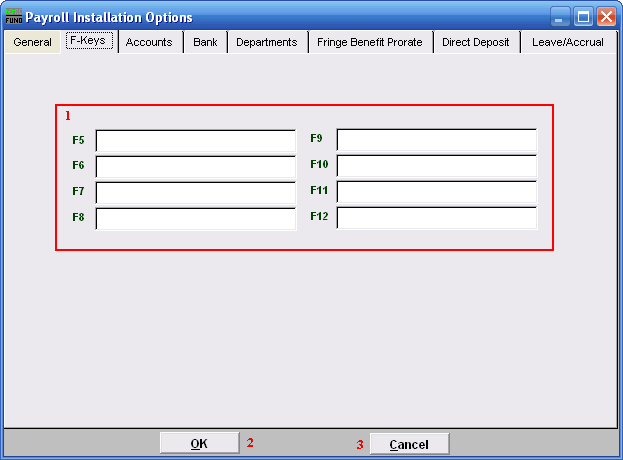
Each of the F Key fields (F5-F12) is linked to the associated F-Key on your keyboard. In other words, when you hit the "F_" key on your keyboard, the text entered for that F-Key will appear.
The "Accounts" tab
Click on the "Accounts" tab, and the following window will appear:
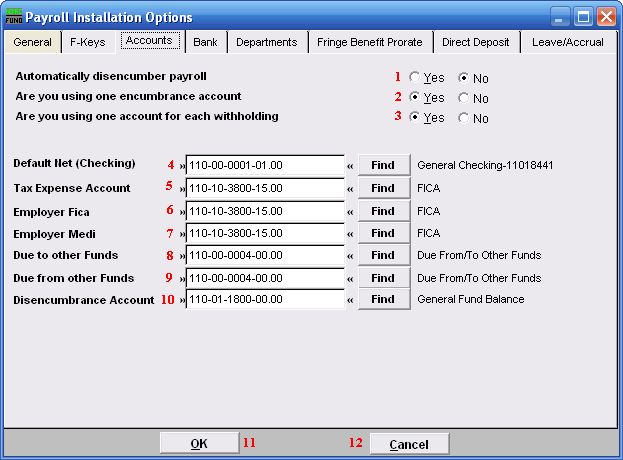
- Automatically disencumber payroll: Select this option to have gross pays, fica/medicare expenses and fringe benefits be disencumbered when paid.
- Are you using one encumbrance account: If the disencumbrance account listed below is the only account on the balance sheet hold the encumbrance value then answer Yes. When you use an account per fund then all accounts must be uniform except the fund digits. This is only valid if you answer yes to #1.
- Are you using one account for each withholding: This is commonly answered yes and all withholdings are posted to the base fund liability accounts.
- Default Net (Checking): Enter the General Ledger reference account that represents the default checking account for employee net pay checks. Commonly this account remains the same for all employees. This can be changed at the employee level but is very uncommon.
- Tax Expense Account: Enter the General ledger reference account for local taxes if needed or the Fica/Medicare expense account.
- Employer Fica: Enter the General ledger reference account for the FICA expense, this can be changed at the employee and pay type level.
- Employer Medi: Enter the General ledger reference account for the FICA expense, this can be changed at the employee and pay type level.
- Due to other Funds: Enter the liability account that represents interfund activities in the General ledger. The best practice is for this account to be both the due to and the due from account and be the asset account below.
- Due from other Funds: Enter the asset account that represents interfund activities in the General ledger. The best practice is for this account to be both the due from and the due to account
- Disencumbrance Account: Enter the liability account that holds the encumbrance balance for all gross pays, Fica/Medicare and Fringe expenses that will be disencumbered. If each fund has an account then they must be uniform except the fund digits in the account.
- OK: Click "OK" to save changes and return to the previous menu.
- Cancel: Click "Cancel" to cancel and return to the previous menu.
The "Bank" tab
Click on the "Bank" tab, and the following window will appear:
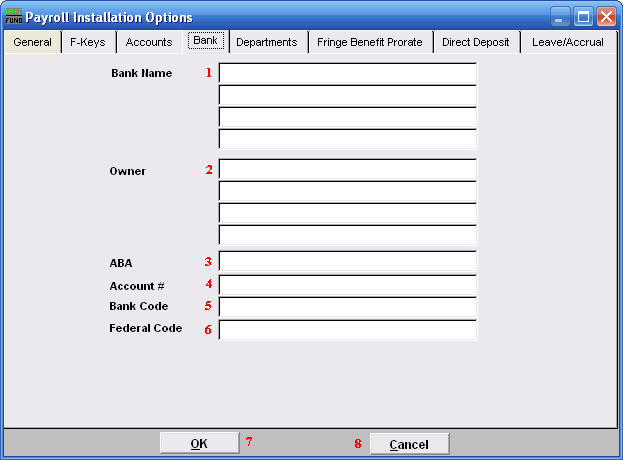
- Bank Name: Enter the banking institution information that needs to show on your check. The name and location of the servicing branch on most common.
- Owner: Enter the business name to appear on the check. This is commonly the name appearing on the checking account on at the bank.
- ABA: Enter the ABA number of the bank. This prints on the bottom of the check.
- Acct #: Enter the account number at the bank. This prints on the bottom of the check.
- Bank Code: Enter the bank code to appear on the top of check.
- Fed Code: Enter the federal code to appear on the top of the check.
- OK: Click "OK" to save changes and return to the previous menu.
- Cancel: Click "Cancel" to cancel and return to the previous menu.
The "Departments" tab
Click on the "Departments" tab, and the following window will appear:
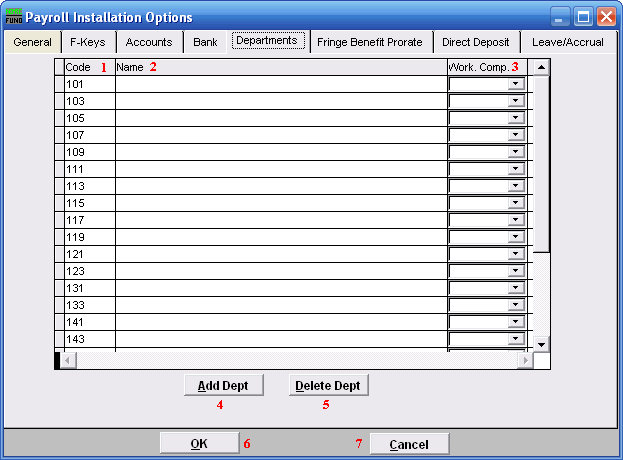
- Code: Enter a user defined code to use in grouping employees by department.
- Name: Enter the name of the department defined.
- Work. Comp.: Enter the default workers compensation code for that department.
- Add Dept: Click this button to add a new department line.
- Delete Dept: Select a line and click this button to delete a department.
- OK: Click "OK" to save changes and return to the previous menu.
- Cancel: Click "Cancel" to cancel and return to the previous menu.
The "Fringe Benefit Prorate" tab
Click on the "Fringe Benefit Prorate" tab, and the following window will appear:
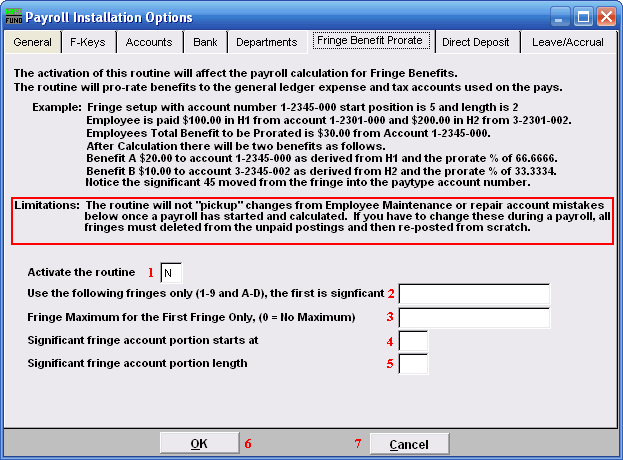
Be sure to understand what this routine does, as well as its limitations.
- Activate the routine: Enter a "Y" into the box if you want to activate this routine. Be sure you understand what this routine does, as well as its limitations. Enter a "N" if you do not want to activate this routine.
- Use the following fringes only (1-9 and A-D), the first is significant: Specify by number or letter each fringe that will follow this routine.
- Fringe Maximum for the First Fringe Only, (0 = No Maximum): Enter the maximum amount for the first fringe, or enter "0" to not have a maximum.
- Significant fringe account portion starts at: Enter the position in the account number for which the system needs to substitute the fringe expense account number change.
- Significant fringe account portion length: Enter the number of positions in the account number for which the system needs to substitute the fringe expense account number change.
- OK: Click "OK" to save changes and return to the previous menu.
- Cancel: Click "Cancel" to cancel and return to the previous menu.
The "Direct Deposit" tab
Click on the "Direct Deposit" tab, and the following window will appear:
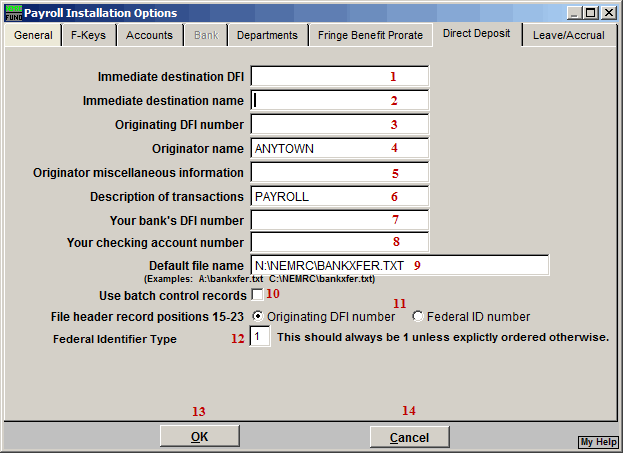
Any changes you make on this screen will be saved, even if you choose "Cancel."
- Immediate destination DFI: Enter the ABA number provided by your bank.
- Immediate destination name: This will typically be the name of your bank.
- Originating DFI number: This is commonly the same number as item 1. Check with your banking institution.
- Originator name: Enter the name as it appears on your bank account.
- Originator miscellaneous information: Enter any information you desire. Some banking institutions require specific data here as well.
- Description of transactions: Enter a brief description of the activity to be transferred. Payroll Direct Deposit for a specific date may appear as "PR-DD-MMYYDD."
- Your bank's DFI number: This is commonly the same number as item 1. Check with your banking institution.
- Your checking account number: Enter the actual account number where the funds will be taken from.
- Default file name: Enter the file name for Direct Deposits to save under.
- Use batch control records: Check this box to use batch control records, uncheck this box to not use batch control records.
- File header record positions 15-23: Check with your banking institution with what is required for them in these positions.
- Federal Identifier Type: This should always be "1." Otherwise, you will have been told explicitly what to use.
- OK: Click "OK" to save changes and return to the previous menu.
- Cancel: Click "Cancel" to cancel and return to the previous menu.
The "Leave/Accrual" tab
Click on the "Leave/Accrual" tab, and the following window will appear:
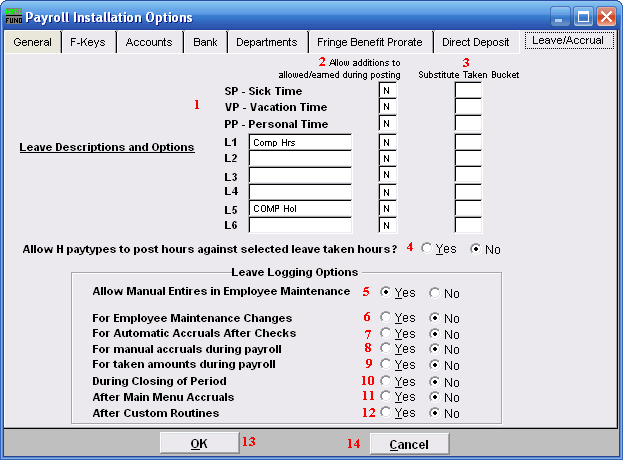
- Leave Descriptions and Options: Sick, Vacation and Personal benefit time are pre-defined by NEMRC. Define up to six additional leave times for tracking in "6. Employee Maintenance." Distinct pay types L1, L2, L3, L4, L4, L5 and L6.
- Allow additions to allowed/earned during posting: The option to allow accrual of benefit time to be recorded on any of these defined leave times during posting can be set by entering a "Y" (yes) in the box on the right for each item desired.
- Substitute Taken Bucket: Enter an accrual code that will be used in place of the accrual bucket that you specify while posting. For instance if you setup L4 as Holiday as Vacation and you want to decrement the available vacation, enter VP in the L4 substitute bucket.
- Allow H paytypes to post hours against selected leave taken hours?: Paytypes can be setup to affect accrual buckets. For instance you might setup HV (Hourly V) named Vacation Special to post against the VP buckets. Choose "Yes" to allow that type of substitution to add the leave bucket to the Hourly paytype desired.
- Allow Manual Entries in Employee Maintenance: When set to "Yes," this allows for manual changes to the leave log in "6. Employee Maintenance." This will allow for all types of entries and will NOT force the leave log entries to reconcile to the leave balances.
- For Employee Maintenance Changes: When set to "Yes," this will create log entries for every change made to the leave balances.
- For Automatic Accruals After Checks: When set to "Yes," this will create log entries for every accrual that happens during payroll with the exception of posted entries.
- For manual accruals during payroll: When set to "Yes," this will create log entries for posted accrual entries during payroll.
- For taken amounts during payroll: When set to "Yes," this will create log entries for posted taken entries during payroll.
- During Closing of Period: When set to "Yes," this will create log entries for changes to accruals during the close of a period in payroll.
- After Main Menu Accruals: When set to "Yes," this will create log entries for changes to accruals during the use of "L. Leave time Accrual Maintenance."
- After Custom Routines: When set to "Yes," this will create log entries for changes to accruals during the use of custom reports and routines. This is done by comparing the entries prior and post custom reports and routines.
- OK: Click "OK" to save changes and return to the previous menu.
- Cancel: Click "Cancel" to cancel and return to the previous menu.