
Payroll Support Document
Open as: PDF or Word Document
3. Edit Postings
Table of Contents
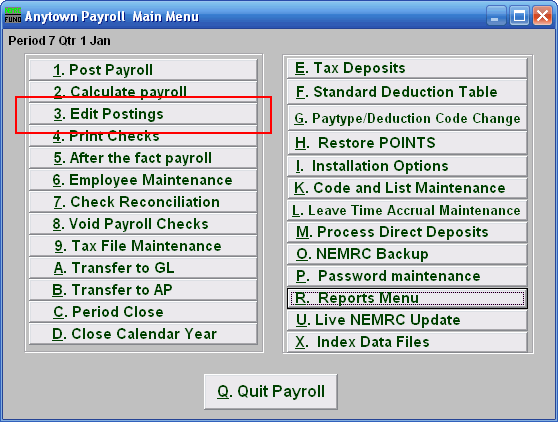
Click on "3. Edit Postings" from the Main Menu and the following window will appear:
Edit Postings: Normal Screen
If you do NOT have "Use New Posting Screen" turned on in the "General" tab of "I. Installation" off the Main Menu, then the following window will appear:
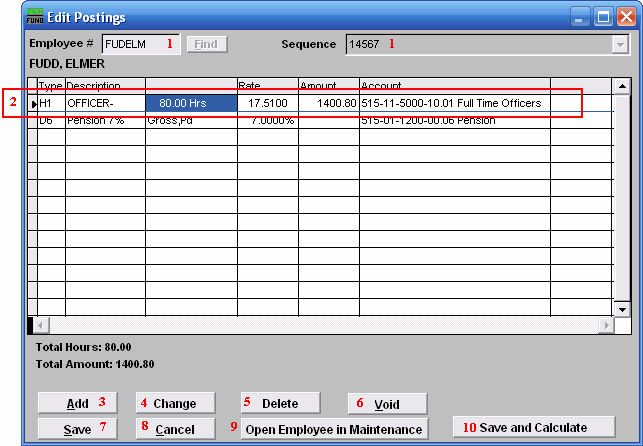
- Employee #: Locate the Employee you are seeking, then choose the Sequence for the Posting you wish to edit.
- Selector: The pay types and deductions that have been set up to automatically post will appear in this list. Click on any line to take action using item 3 or 4.
- Add: Click "Add" to add a new posting.
- Change: Click this button to change the selected line from the table above.
- Delete: Click "Delete" to delete the selected Posting.
- Void: Click "Void" to void the Entire Posting.
- Save: Click "Save" to save any changes.
- Cancel: Click "Cancel" to cancel and return to the Main Menu.
- Open Employee in Maintenance: Click to open this Employee in the Employee Maintenance screens. When you leave those screens, you will be returned here.
- Save and Calculate: Click to save changes and Calculate.
Edit Postings: New Screen
If you turned on "Use New Posting Screen" in the "General" tab of "I. Installation" off the Main Menu, then the following window will appear:
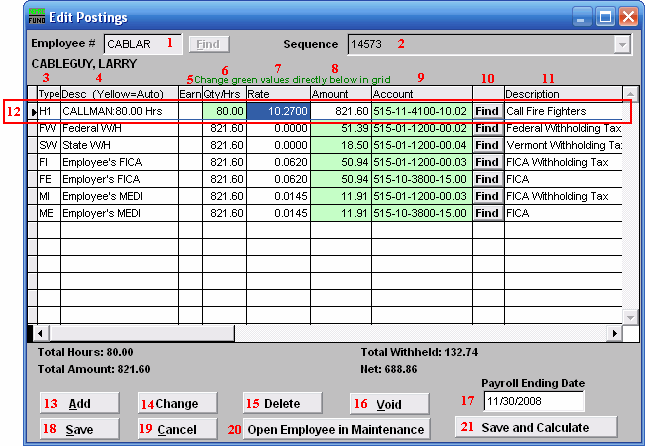
- Employee #: Locate the Employee you are seeking, then choose the Sequence for the Posting you wish to edit.
- Sequence: This is the sequence number for the Posting you chose to edit.
- Type: This column shows the paytypes that this employee is being paid on this posting.
- Desc (Yellow=Auto): This is the description of the paytype from the "Type" column.
- Earn: This column is available for editing if you have chosen to add a Leave paytype. You must first choose to enable "Earn" for each Leave paytype in "I. Installation Options" off the Main Menu. Enter a "Y" in this column if the Employee's Leavetime is to be accrued. Enter a "N" in this column if the Employee's Leavetime is not to be accrued.
- Qty/Hrs: Enter the number of hours of pay for each paytype.
- Rate: This is the rate that the employee is being paid for each paytype.
- Amount: This is the total amount being paid for each paytype.
- Account: This is the General Ledger Account that each paytype is being paid out of.
- Find: Click the "Find" button in each row to locate a General Ledger Account for that paytype to be paid out of.
- Description: This is the description of the General Ledger Account.
- Selector: The pay types and deductions that have been set up to automatically post will appear in this list. Click on any line to take action using item 13, 14 or 15. You may change information that appears in green for a pay type by clicking on the grid. The pay types that appear in yellow are the pay types that are set to Autopost. If you chose "Time Card" or have "Track Labor Costing" turned on then you may need to scroll to the right to view/edit more fields. You may turn on "Track Labor costing" through "I. Installation Options" off the Main Menu.
- Add: Click "Add" to add a new posting.
- Change: Click this button to change the selected line from the table above. You may also change the information directly on the grid. Refer to item 12 Selector for more information.
- Delete: Click "Delete" to delete the selected Posting.
- Void: Click "Void" to void the Entire Posting.
- Payroll Ending Date: Enter the ending date of the payroll period for which the check was issued.
- Save: Click "Save" to save any changes.
- Cancel: Click "Cancel" to cancel and return to the Main Menu.
- Open Employee in Maintenance: Click to open this Employee in the Employee Maintenance screens. When you leave those screens, you will be returned here.
- Save and Calculate: Click to save changes and Calculate.
Add
If you click "Add," the following window will appear:
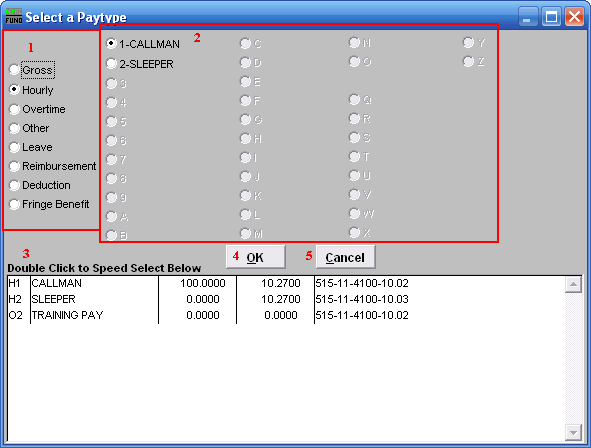
- Click to choose what kind of Paytype you want to add to this Posting.
- Click to choose which specific Paytype based on item 1 that you wish to add.
- Double Click to Speed Select: For your convenience there is a list of pre-existing Paytypes for this Employee. Double click on one to choose it.
- OK: 1.Click "OK" to continue, depending which paytype you chose to add, the following "Change" window may appear for you to add the information for this paytype.
- Cancel: Click "Cancel" to cancel and return to the Main Menu.
Change
If you click "Change," the following window will appear:
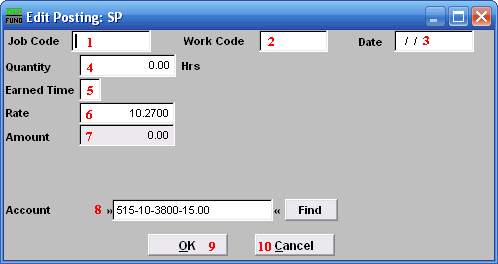
- Job Code: Only available if you have Job Costing turned on in "I. Installation Options." Enter the Job Code for this Paytype.
- Work Code: Only available if you have Job Costing turned on in "I. Installation Options." Enter the Work Code for this Paytype.
- Date: Only available if you have Job Costing turned on in "I. Installation Options." Enter the Date the work was performed. This is often left as the Pay Period's ending date.
- Quantity: Enter the amount of hours to record for this pay type in this pay period.
- Earned Time: This is only available if you chose to add or change a "Leave" Paytype. You must first choose to enable "Earn" for each Leave paytype in "I. Installation Options" off the Main Menu. Enter a "Y" if the Employee's Leavetime is to be accrued. Enter a "N" in this column if the Employee's Leavetime is not to be accrued.
- Rate: Enter the rate of pay for these hours.
- Amount: The system will calculate the total value of this pay type.
- Job Code: User defined for later reporting from payroll.
- Work Code: User defined for later reporting from payroll.
- Account: The default expense account will appear and may be changed during posting.
- OK: Click "OK" to save changes to the Posting and return to the Posting screen.
- Cancel: Click "Cancel" to cancel and return to the Posting screen.